Flow Creation Guide
A step-by-step guide to creating, validating, and running your first Flow.
Table of Contents
- Prerequisites
- Step 1: Open the Flow Editor
- Step 2: Define Flow Metadata
- Step 3: Add Inputs
- Step 4: Add Variables
- Step 5: Add Tasks
- Step 6: Define Outputs
- Step 7: Validate the Flow
- Step 8: Save and Create
- Step 9: Execute the Flow
- Step 10: Review Results
- Complete Examples
Prerequisites
Before creating a flow, ensure you have:
- Access to the Bag Master extension (login at your organization's Bringup instance)
- A namespace assigned to your team/project
- Knowledge of the task types you want to use (see Plugin Reference)
Step 1: Open the Flow Editor
Navigate to the Flows section in the Bag Master extension and click the flow sidebar item.
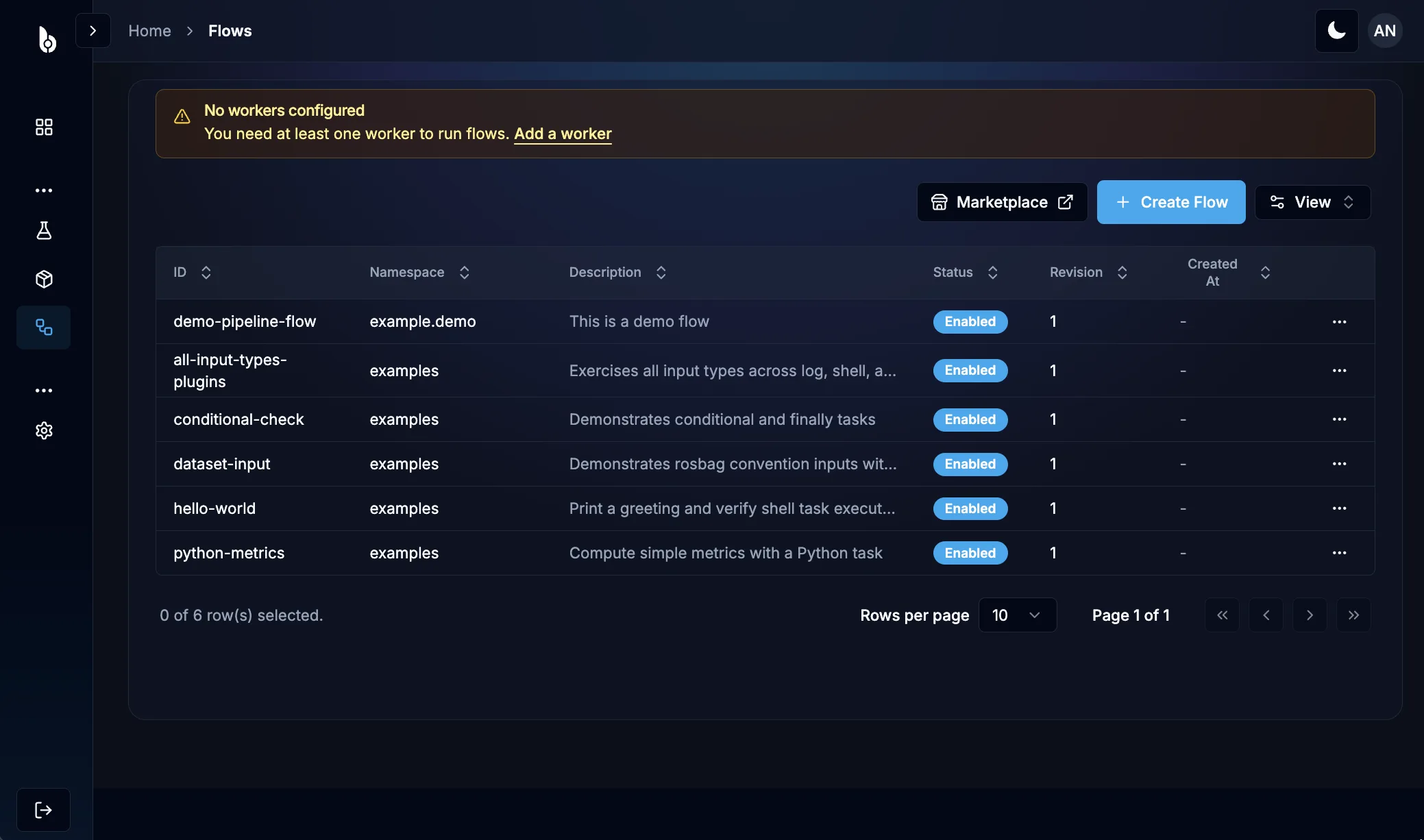
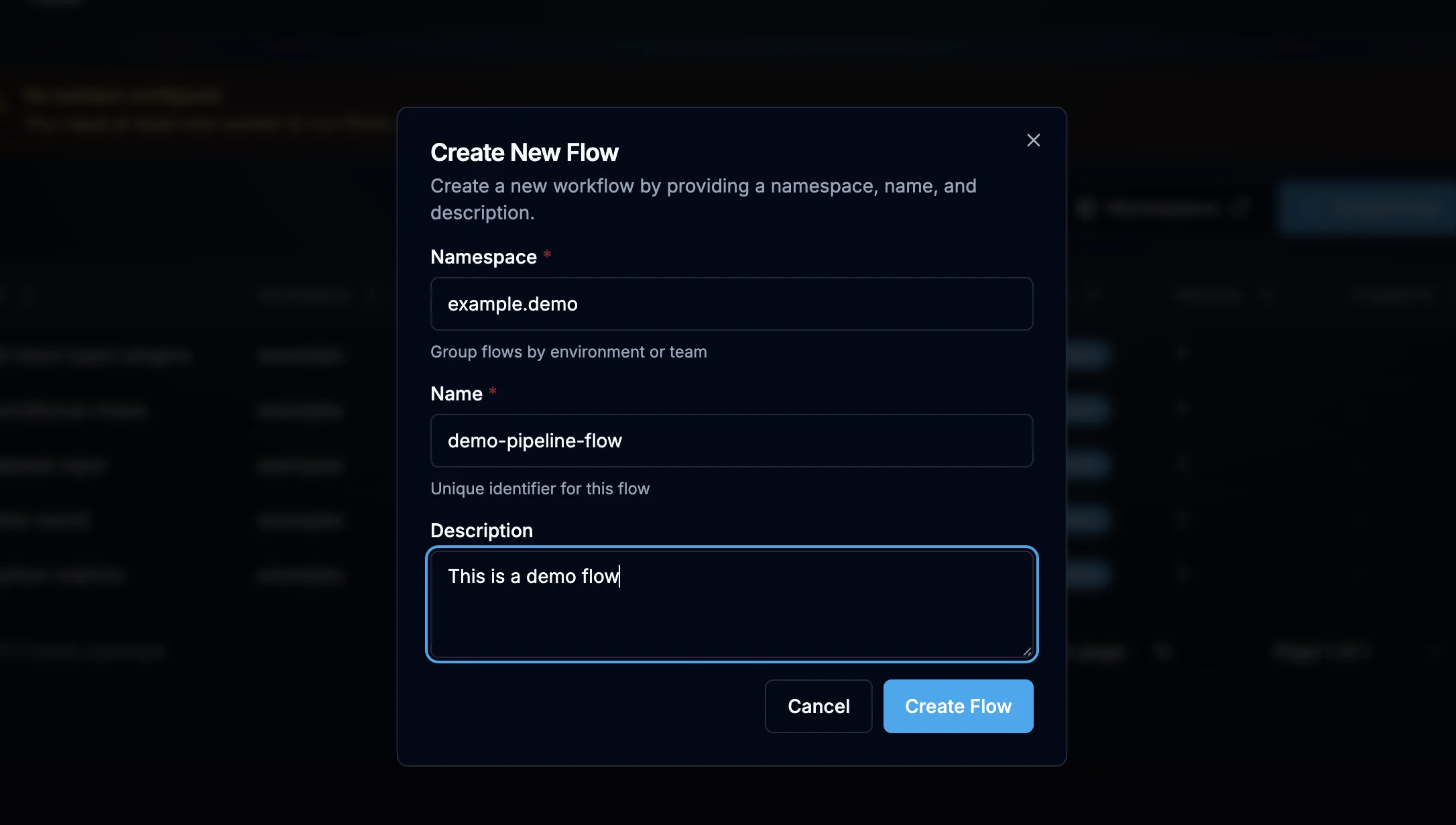
Click the "Create Flow" button to create a new flow. This will ask you to enter few basic details.
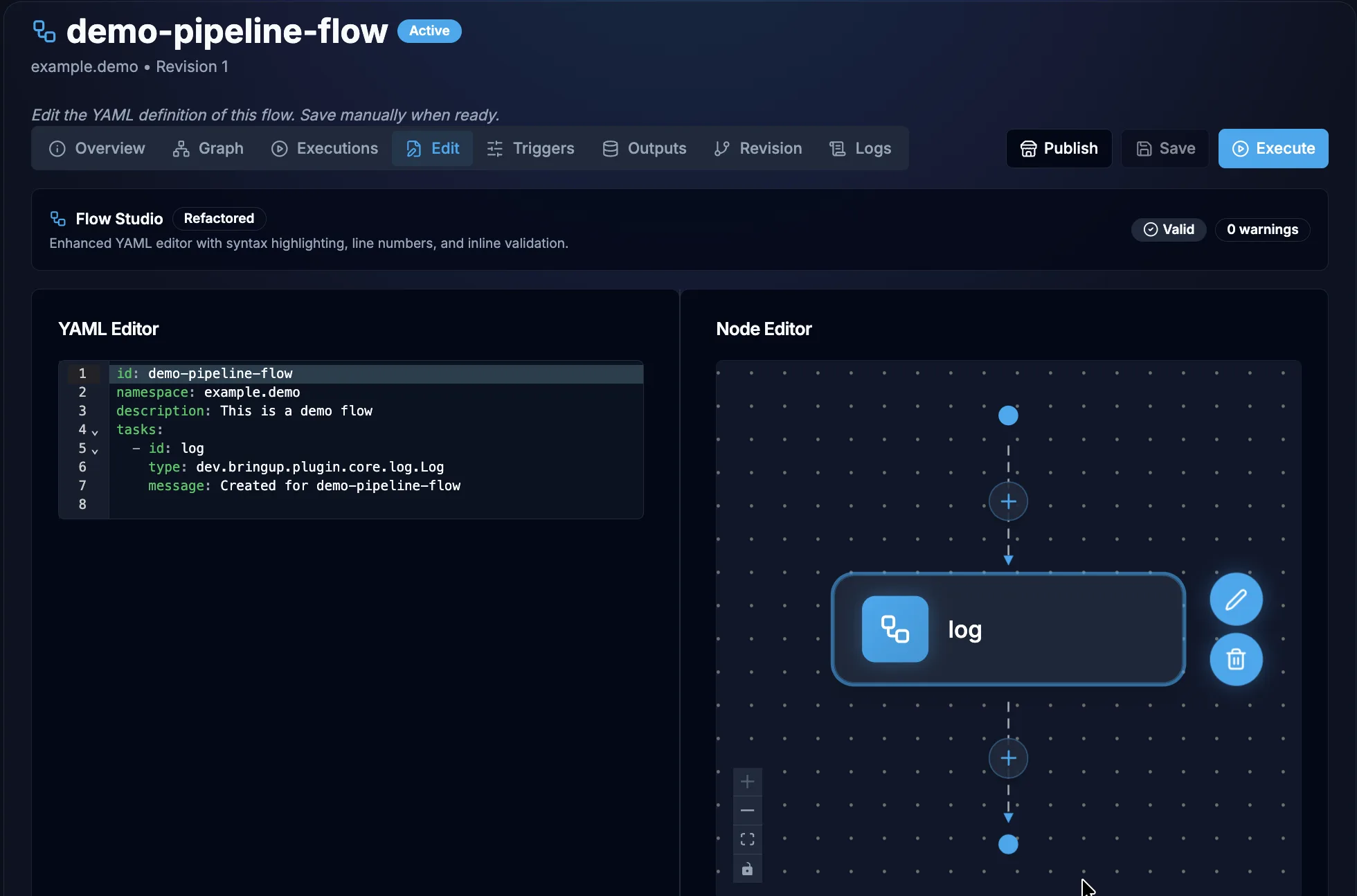
Go to the Edit tab, there you'll see a YAML editor where you can write your flow definition. The editor provides:
- Syntax highlighting for YAML
- Auto-completion for task types and properties
- Real-time validation feedback
Step 2: Define Flow Metadata
Start with the flow's identity and description:
id: demo-pipeline-flow
namespace: example.demo
description: This is a demo flow
labels:
  category: tutorial
  difficulty: beginner
tasks:
  - id: log
    type: dev.bringup.plugin.core.log.Log
    message: Created for demo-pipeline-flow
Rules:
idmust match^[a-zA-Z0-9][a-zA-Z0-9._-]*$(letters, numbers, dots, underscores, hyphens)namespacemust be lowercase:^[a-z0-9][a-z0-9._-]*$descriptionis optional but highly recommendedlabelsare optional key-value pairs for organization
Step 3: Add Inputs
Inputs define the parameters users provide when running the flow. The Bag Master extension supports 13 input types.
inputs:
  - id: dataset_name
    type: STRING
    required: true
    description: Name of the dataset to process
    display_name: Dataset Name

  - id: sample_count
    type: INT
    required: false
    defaults: 100
    min: 1
    max: 10000
    description: Number of samples to process

  - id: output_format
    type: ENUM
    values:
      - csv
      - json
      - parquet
    defaults: csv
    description: Output file format

  - id: verbose
    type: BOOLEAN
    defaults: false
    description: Enable verbose logging
For the full list of input types and their validation rules, see the Inputs Reference.
Step 4: Add Variables
Variables are environment variables available to all tasks. They're ideal for shared configuration:
variables:
  OUTPUT_DIR: /data/results
  LOG_LEVEL: INFO
  API_ENDPOINT: https://api.example.com/v1
Variables are referenced in tasks using {{ variables.OUTPUT_DIR }} syntax, which gets converted to ${OUTPUT_DIR} environment variables during transpilation.
Step 5: Add Tasks
Tasks are the core of your flow — they define the actual work to perform. Tasks execute sequentially in the order they're listed.
5a. Choose a Task Type
Select from the available task plugins:
| Task Type | Use When... |
|---|---|
| Shell | Running shell commands, scripts, CLI tools |
| Python Script | Executing Python code with dependencies |
| Docker Run | Running containers with specific images |
| ROS Bag Loader | Downloading ROS bag files |
| HTTP Request | Making API calls |
| Log | Logging messages for debugging/audit |
| Subflow | Calling another flow |
5b. Add Your First Task
tasks:
  - id: log-start
    type: dev.bringup.plugin.core.log.Log
    message: 'Starting processing of {{ inputs.dataset_name }}'

  - id: process-data
    type: dev.bringup.plugin.scripts.python.Script
    dependencies:
      - pandas
      - numpy
    script: |
      import pandas as pd
      import os

      dataset = os.getenv("DATASET_NAME")
      count = int(os.getenv("SAMPLE_COUNT", "100"))
      fmt = os.getenv("OUTPUT_FORMAT", "csv")

      print(f"Processing {dataset} with {count} samples")
      print(f"Output format: {fmt}")

      # Your processing logic here
      df = pd.DataFrame({"sample": range(count)})

      output_path = f"{os.getenv('OUTPUT_DIR', '.')}/result.{fmt}"
      if fmt == "csv":
          df.to_csv(output_path, index=False)
      elif fmt == "json":
          df.to_json(output_path)

      print(f"Results written to {output_path}")
    outputFiles:
      - '*.csv'
      - '*.json'

  - id: log-complete
    type: dev.bringup.plugin.core.log.Log
    message: 'Processing complete for {{ inputs.dataset_name }}'
5c. Configure Task Properties
Each task type has its own set of properties. Click on a task card to expand its configuration:
5d. Add Conditional Execution (Optional)
Use run_if to conditionally execute tasks:
- id: verbose-debug
  type: dev.bringup.plugin.core.shell.Shell
  run_if: '{{ inputs.verbose }}'
  commands:
    - env | sort
    - df -h
    - free -m
5e. Add Error Handling (Optional)
Use allow_failure, retry, and error/finally tasks:
- id: risky-task
  type: dev.bringup.plugin.core.shell.Shell
  allow_failure: true
  retry:
    type: exponential
    max_attempt: 3
    interval: '5s'
    max_interval: '60s'
    delay_factor: 2.0
  commands:
    - ./potentially-flaky-operation.sh
Step 6: Define Outputs
Outputs expose values from task results for use by parent flows or external consumers:
outputs:
  - id: result_path
    type: STRING
    value: '{{ task_outputs.process-data.output_path }}'
    description: Path to the generated result file

  - id: sample_count_processed
    type: INT
    value: '{{ task_outputs.process-data.count }}'
    description: Number of samples actually processed
Step 7: Validate the Flow
Before saving, validate your flow to catch errors early.
Via the UI
Click the "Validate" button in the editor toolbar.
Via the API
# Validate without saving
curl -X POST https://api.dev.bringup.dev/flows/validate \
  -H "Content-Type: application/x-yaml" \
  -d @my-flow.yaml
Response:
{
  "valid": true,
  "errors": [],
  "warnings": []
}
Validate Transpilation Compatibility
Check if your flow can be converted to a Jenkinsfile:
curl -X POST https://api.dev.bringup.dev/transpiler/convert/jenkins/validate \
  -H "Content-Type: application/json" \
  -d @my-flow.json
Response:
{
  "convertible": true,
  "totalTasks": 3,
  "validTasks": 3,
  "unsupportedTasks": [],
  "warnings": []
}
Step 8: Save and Create
Once validated, click "Save" or use the API:
curl -X POST https://api.dev.bringup.dev/flows \
  -H "Content-Type: application/x-yaml" \
  -H "x-oidc-sub: your-user-id" \
  -d @my-flow.yaml
The flow is now stored with revision 1. Every subsequent update creates a new revision.
Step 9: Execute the Flow
Via the UI
- Navigate to your flow and click "Execute"
- Fill in the input form (generated automatically from your input definitions)
- Click "Run"
Via the API
First, get the input schema:
curl https://api.dev.bringup.dev/flows/my-team/my-first-flow/schema
Then validate your inputs:
curl -X POST https://api.dev.bringup.dev/flows/my-team/my-first-flow/validate-inputs \
  -H "Content-Type: application/json" \
  -d '{
    "inputs": {
      "dataset_name": "sensor-data-2024",
      "sample_count": 500,
      "output_format": "json",
      "verbose": true
    }
  }'
Then trigger the transpiled Jenkins pipeline with those inputs.
Step 10: Review Results
Execution View
Console Output
Artifacts
Complete Examples
Example 1: Simple Shell Flow
id: hello-world
namespace: examples
description: Print a greeting

inputs:
  - id: user_name
    type: STRING
    required: false
    defaults: Bringup User

tasks:
  - id: greet
    type: dev.bringup.plugin.core.shell.Shell
    commands:
      - echo "Hello {{ inputs.user_name }}!"
      - echo "Welcome to Bringup Flows"
      - date
Example 2: ROS Bag Processing Pipeline
id: rosbag-pipeline
namespace: robotics
description: Download, analyze, and report on ROS bag data

inputs:
  - id: rosbag_id
    type: STRING
    required: true
    description: ID of the ROS bag to process
  - id: analysis_type
    type: ENUM
    values: [quick, full, deep]
    defaults: quick

variables:
  BM_ROSBAGS_DIR: /tmp/bagmaster/rosbags
  BM_ROSBAGS_MANIFEST_PATH: /tmp/bagmaster/rosbags/manifest.json

tasks:
  - id: bm_rosbag_loader
    type: dev.bringup.plugin.core.rosbag.LoadById

  - id: analyze
    type: dev.bringup.plugin.scripts.python.Script
    dependencies:
      - rosbags
      - matplotlib
      - numpy
    script: |
      import json
      import os

      manifest_path = os.getenv("BM_ROSBAGS_MANIFEST_PATH")
      analysis_type = os.getenv("ANALYSIS_TYPE", "quick")

      with open(manifest_path) as f:
          manifest = json.load(f)

      entries = manifest.get("entries", [])
      print(f"Analyzing {len(entries)} files ({analysis_type} mode)")

      for entry in entries:
          print(f"  File: {entry.get('filename')}")
          print(f"  Size: {entry.get('size', 0)} bytes")

      result = {"files_analyzed": len(entries), "mode": analysis_type}
      print(json.dumps(result))
    outputSchema:
      files_analyzed:
        type: INT

  - id: report
    type: dev.bringup.plugin.core.log.Log
    message: 'Analysis complete: {{ task_outputs.analyze.files_analyzed }} files processed'

outputs:
  - id: files_count
    type: INT
    value: '{{ task_outputs.analyze.files_analyzed }}'
Example 3: Docker-Based CI/CD Pipeline
id: docker-ci
namespace: ci
description: Build and test a project using Docker

inputs:
  - id: repo_url
    type: URI
    required: true
  - id: branch
    type: STRING
    defaults: main
  - id: run_integration_tests
    type: BOOLEAN
    defaults: false

tasks:
  - id: clone
    type: dev.bringup.plugin.core.shell.Shell
    commands:
      - git clone --branch {{ inputs.branch }} {{ inputs.repo_url }} workspace
      - cd workspace && git log --oneline -5

  - id: build
    type: dev.bringup.plugin.docker.run
    containerImage: node:20-alpine
    commands:
      - cd /app && npm ci
      - npm run build
    volumes:
      - hostPath: ./workspace
        path: /app
    timeout: '300s'

  - id: unit-tests
    type: dev.bringup.plugin.docker.run
    containerImage: node:20-alpine
    commands:
      - cd /app && npm test
    volumes:
      - hostPath: ./workspace
        path: /app

  - id: integration-tests
    type: dev.bringup.plugin.docker.run
    containerImage: node:20-alpine
    run_if: '{{ inputs.run_integration_tests }}'
    commands:
      - cd /app && npm run test:integration
    volumes:
      - hostPath: ./workspace
        path: /app
    timeout: '600s'

  - id: log-result
    type: dev.bringup.plugin.core.log.Log
    message: 'CI pipeline complete for {{ inputs.branch }}'
Example 4: Multi-Stage Pipeline with Subflows
id: deployment-pipeline
namespace: devops
description: Full deployment pipeline orchestrating subflows

inputs:
  - id: service_name
    type: STRING
    required: true
  - id: version
    type: STRING
    required: true
  - id: environment
    type: ENUM
    values: [staging, production]
    defaults: staging

tasks:
  - id: build
    type: dev.bringup.plugin.core.flow.Subflow
    flowId: build-service
    namespace: ci
    inputs:
      service: '{{ inputs.service_name }}'
      version: '{{ inputs.version }}'
    outputSchema:
      image_tag:
        type: STRING

  - id: test
    type: dev.bringup.plugin.core.flow.Subflow
    flowId: run-tests
    namespace: ci
    inputs:
      image: '{{ task_outputs.build.image_tag }}'
    outputSchema:
      passed:
        type: BOOLEAN

  - id: deploy
    type: dev.bringup.plugin.core.flow.Subflow
    flowId: deploy-service
    namespace: devops
    inputs:
      image: '{{ task_outputs.build.image_tag }}'
      environment: '{{ inputs.environment }}'

  - id: notify
    type: dev.bringup.plugin.core.http.Request
    url: https://hooks.slack.example.com/services/xxx
    method: POST
    headers:
      Content-Type: application/json
    body: |
      {
        "text": "Deployed {{ inputs.service_name }}:{{ inputs.version }} to {{ inputs.environment }}"
      }
What's Next?
- Inputs Reference - Learn about all 13 input types
- Advanced Features - Retry policies, concurrency, checks, and triggers
- Plugin Reference - Detailed documentation for each task type
- Marketplace - Share your flows with the community